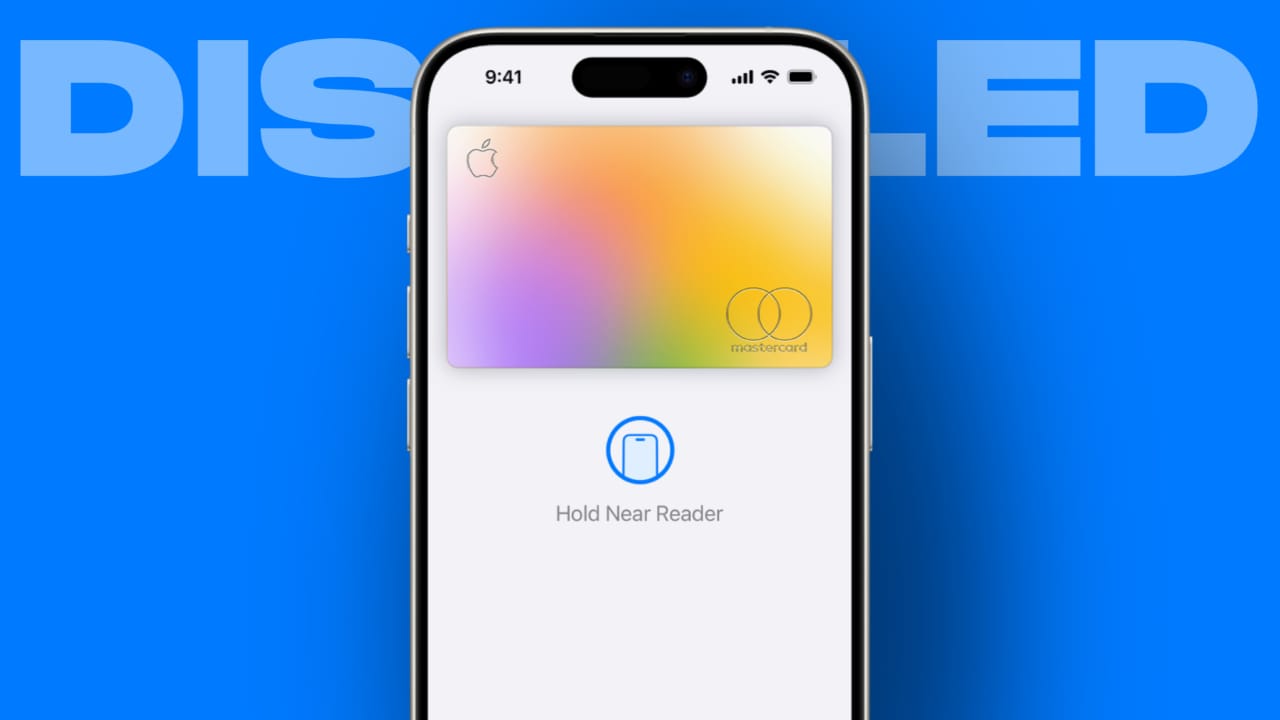
Disable Apple Pay on a Lost or Stolen iPhone quickly. Losing your iPhone can create panic. Your personal data may become exposed. Your payment cards may feel unsafe. Apple Pay is very secure.
It uses Face ID or passcode. Still, fast action gives extra protection. Here, I will explain every step clearly. Follow each step carefully. Stay calm and act immediately.
Disable Apple Pay on a Lost or Stolen iPhone Immediately
When your iPhone goes missing, act fast. Time is very important here. Apple Pay requires authentication before payments. It uses Face ID verification. It also uses Touch ID security. A device passcode is also required.
But risks still remain possible. If someone knows your passcode, problems start. They may try accessing stored apps. They may attempt using payment methods. They may try changing account settings.
Disabling Apple Pay gives extra safety. It prevents unauthorized payment attempts. It protects your stored debit cards. It protects your saved credit cards. It reduces chances of fraud. It secures your Apple account further.
Apple Pay does not store real numbers. It stores encrypted payment tokens instead. Your actual card numbers stay hidden. Still, disabling ensures maximum protection. It is better to act early.
What You Need Before Disabling Apple Pay
Keep important details ready first. Preparation makes the process smooth.
You will need:
- Your Apple ID email address
- Your Apple ID password
- Access to another internet device
- Stable internet connection
- Two-factor authentication access
Another device can be any browser device. It can be a phone. It can be a laptop. It can be a tablet. It does not need the Apple brand.
If you forgot your password, reset it. Visit iforgot.apple.com in the browser. Follow password recovery instructions carefully. Create a strong new password. Avoid using old passwords again.
Remember one important thing. Suspending Apple Pay does not cancel cards. Your physical debit cards remain active. You must contact the bank separately.
Using Lost Mode
Lost Mode is the fastest solution. It locks your missing iPhone remotely. It also disables Apple Pay automatically. All added cards get suspended immediately.
You can activate Lost Mode easily. You can use another Apple device. You can use a family member’s device. You can also use the iCloud website.
Steps to Activate Lost Mode Using Web
Follow these simple steps carefully.
- Open iCloud.com/find in the browser.
- Sign in using Apple ID.
- Enter your password correctly.
- Open Find Devices section.
- Select your lost iPhone.
- Choose Mark As Lost option.
- Tap Activate to continue.
- Enter alternate contact number.
- Add a custom lock screen message.
- Press Activate to confirm.
Your device now enters Lost Mode. The phone becomes locked immediately. Apple Pay gets disabled automatically. Payment cards stop working instantly.
You can still track your device. Find My network helps tracking. It works even if offline.
Steps Using Another Apple Device
You can use another iPhone or iPad.
- Open Find My app.
- Tap Devices tab.
- Select your lost iPhone.
- Scroll to Mark As Lost.
- Tap Activate option.
- Enter phone number.
- Add lock screen message.
- Tap Activate to finish.
Lost Mode protects your device strongly. It prevents Apple Pay misuse.
By Removing Cards
Sometimes Lost Mode may not work. In that case remove cards manually. This method also works effectively.
Remove Cards Using Apple ID Website
Follow these simple steps carefully.
- Visit appleid.apple.com website.
- Sign in with Apple ID.
- Enter two-factor authentication code.
- Click Devices from the left panel.
- Select your lost iPhone.
- Find Wallet and Apple Pay section.
- Click the Remove Items button.
- Confirm removal again.
All added credit cards get removed. Apple Cash also becomes unavailable. Wallet items stop working on the device.
If you recover your iPhone later, you must re-add cards again.
Remove Cards Using Another iPhone or iPad
You can also use another Apple device.
- Open Settings application.
- Tap your Apple ID name.
- Select your lost iPhone.
- Scroll to Wallet and Apple Pay.
- Tap Remove Items option.
- Delete all stored cards.
This method works without Lost Mode. It helps during technical issues.
With Bank Support
Sometimes Apple ID access becomes difficult. You may forget password details. You may not receive verification code. In such cases contact your bank.
Calling your bank is very important. Do not delay this step. Explain clearly that the phone is lost. Inform them Apple Pay is linked. Banks can take these safety steps:
- Suspend Apple Pay virtual account number
- Block digital wallet transactions
- Monitor suspicious payment attempts
- Replace debit or credit cards
- Issue new card if required
This works as a strong backup method. It adds extra financial security.
What Happens After Disabling Apple Pay
Many users feel confused here. Let us understand clearly. After removing Apple Pay from device:
- Payment tokens get suspended
- Contactless store payments stop immediately
- Online Apple Pay payments stop
- Stored card information gets deleted
- Wallet data becomes unavailable
Your Apple Pay remains active elsewhere. Other Apple devices keep working normally. Your physical debit cards still work.
Banking services continue normally. Subscriptions also remain active. If you find your iPhone later, you can re-add cards again.
Extra Security Steps After Losing iPhone
Disabling Apple Pay is important. But you must secure everything else.
Change Your Apple ID Password
Changing password blocks unauthorized access. Use a strong and unique password. Avoid simple or repeated passwords.
Visit iforgot.apple.com to reset password. Enter your Apple ID email. Follow on-screen recovery instructions. Set a strong new password safely.
Monitor Bank and Card Transactions
Check recent transactions carefully. Look for unknown small payments. Watch for failed payment attempts.
Enable instant SMS alerts. Enable email transaction alerts. This helps quick responses. Report suspicious activity immediately.
Report Device to Mobile Carrier
Contact your mobile network provider. Report phone as lost or stolen.
Carrier can take these actions:
- Disable your SIM card
- Stop calls and mobile data
- Block device from network usage
This prevents misuse of your phone number.
Tips to Prevent Apple Pay Misuse in Future
Prevention is always a smarter choice. Keep Find My feature enabled. It helps tracking and locking. It helps disable Apple Pay quickly.
Use a strong alphanumeric device passcode. Avoid simple codes like 1234. Avoid birth year combinations.
Enable two-factor authentication always. It adds extra login security. Even if password leaks, access stays blocked.
Regularly review connected Apple devices. Remove devices you no longer use. Check the device list in the Settings section.
Set up instant bank notifications. Get SMS and email alerts. Quick alerts reduce fraud risk. Stay alert and act quickly. Fast action saves your money.
The Bottom Corner
Disable Apple Pay on a Lost or Stolen iPhone immediately after loss. Quick steps protect your money and cards. Use Lost Mode as the first option. Remove cards manually if needed. Contact the bank for extra safety.
Change passwords and monitor transactions carefully. Keep security features enabled always. Smart preparation reduces financial risk greatly and ensures complete peace of mind.