Monitoring data usage is essential for iPhone users. Many apps use cellular data in the background. This may lead to high data consumption.
Checking data usage helps in saving mobile data. It also improves privacy and security. Many users face slow internet due to data limits.
Knowing which apps use more data is important. Here, I will explain how to Check Which Apps Are Using the Most Data on iPhone. It also shares tips to control data consumption.
also read:Â How to Use Apple Pay on Your iPhone for Contactless Payments
How to Check Data Usage on iPhone
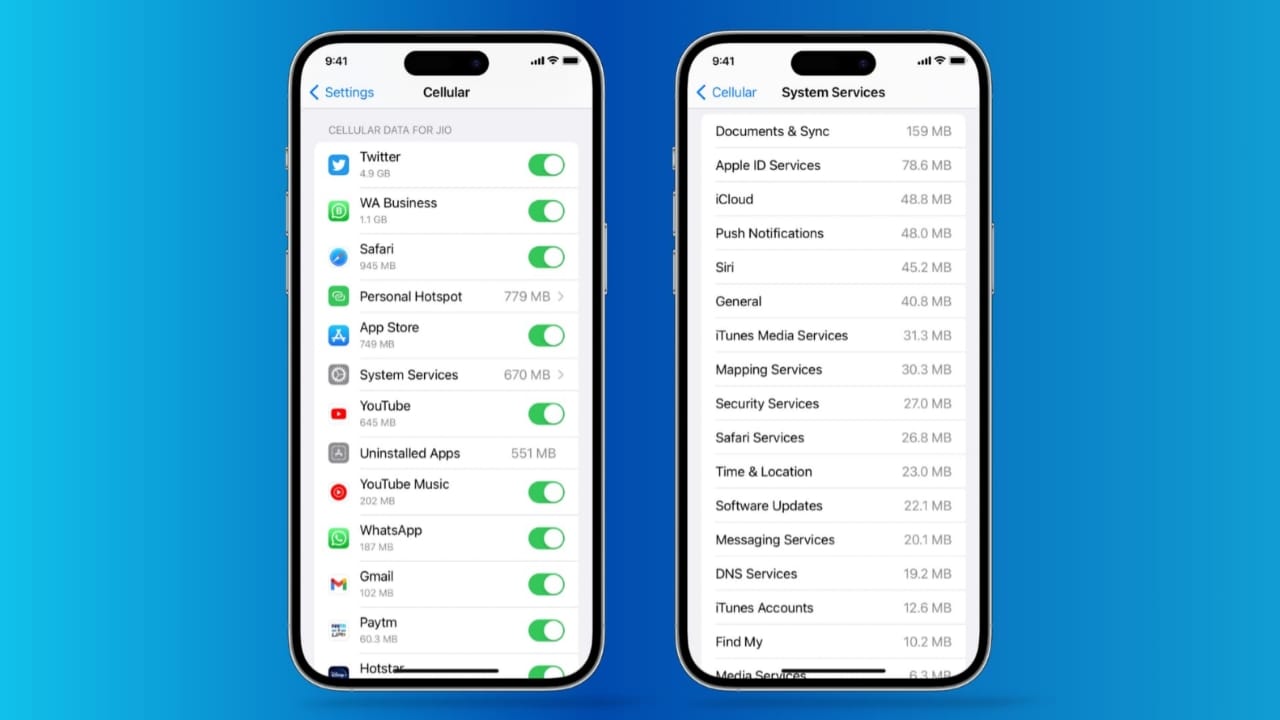
Checking data usage is easy on an iPhone. Open ‘Settings’ and tap on ‘Cellular’. Scroll down to see data used by each app. The apps using most data appear at the top.
You can disable data for specific apps if needed. Tap ‘System Services’ to check iOS data usage. This includes updates and notifications data. Reset the statistics to track new usage.
Tap ‘Reset Statistics’ to start fresh tracking. This helps in monitoring daily or weekly usage.
Apps That Use the Most Data
Some apps consume more data than others. Social media apps like Facebook, Instagram, and Twitter use more. Streaming apps like YouTube, Netflix, and Spotify consume high data. Video conferencing apps like Zoom and Google Meet use much data.
Online games also use data continuously. Cloud storage apps like Google Drive and iCloud consume data. Background app refresh increases data usage. Location-based apps like Google Maps also use high data. Checking these apps regularly can save mobile data.
Ways to Reduce Data Usage
1. Remove Unused Apps
Many users install apps but never use them. Unused apps may still consume background data. Deleting unnecessary apps can help save data. Check installed apps and remove the unwanted ones. This also helps in saving phone storage.
2. Turn Off Wi-Fi Assist
Wi-Fi Assist uses cellular data when Wi-Fi is weak. This may lead to high mobile data consumption. Open ‘Settings’, go to ‘Cellular’, and turn it off. This will prevent automatic mobile data usage.
3. Set Limits for Large Downloads
Avoid downloading large files without Wi-Fi. Some apps update or download files using cellular data. Restrict downloads by changing app settings. Disable mobile data for apps like Google Drive. This prevents unwanted data usage.
4. Connect to Wi-Fi Safely
Public Wi-Fi helps save mobile data. But it may have security risks. Use antivirus software while connecting to public Wi-Fi. This prevents data theft and privacy issues. Always connect to secure and trusted networks.
5. Enable Low Data Mode
Low Data Mode helps in reducing data usage. Open ‘Settings’, tap ‘Cellular’, then ‘Data Mode’. Select ‘Low Data Mode’ to reduce background data use. This stops automatic updates and background tasks. It is useful when mobile data is limited.
6. Turn Off iCloud Backup on Mobile Data
iCloud Backup consumes high data while syncing files. Disable backup when using mobile data. Open ‘Settings’, tap ‘iCloud’, then ‘iCloud Backup’. Turn it off to save data. Enable it only when connected to Wi-Fi.
7. Use Airplane Mode When Needed
Airplane mode stops all network connections. It prevents apps from using data in the background. Swipe down and tap the airplane icon to enable it. Use it when you do not need internet access.
As We Conclude
Tracking data usage helps in saving mobile data. Many apps use data without user knowledge. Checking which apps use the most data is important.
Disabling unwanted data access saves a lot of data. Using Wi-Fi carefully prevents security issues. Low Data Mode helps in controlling mobile data use.
Follow these tips to Check Which Apps Are Using the Most Data on iPhone. This ensures faster internet and lower data costs.