

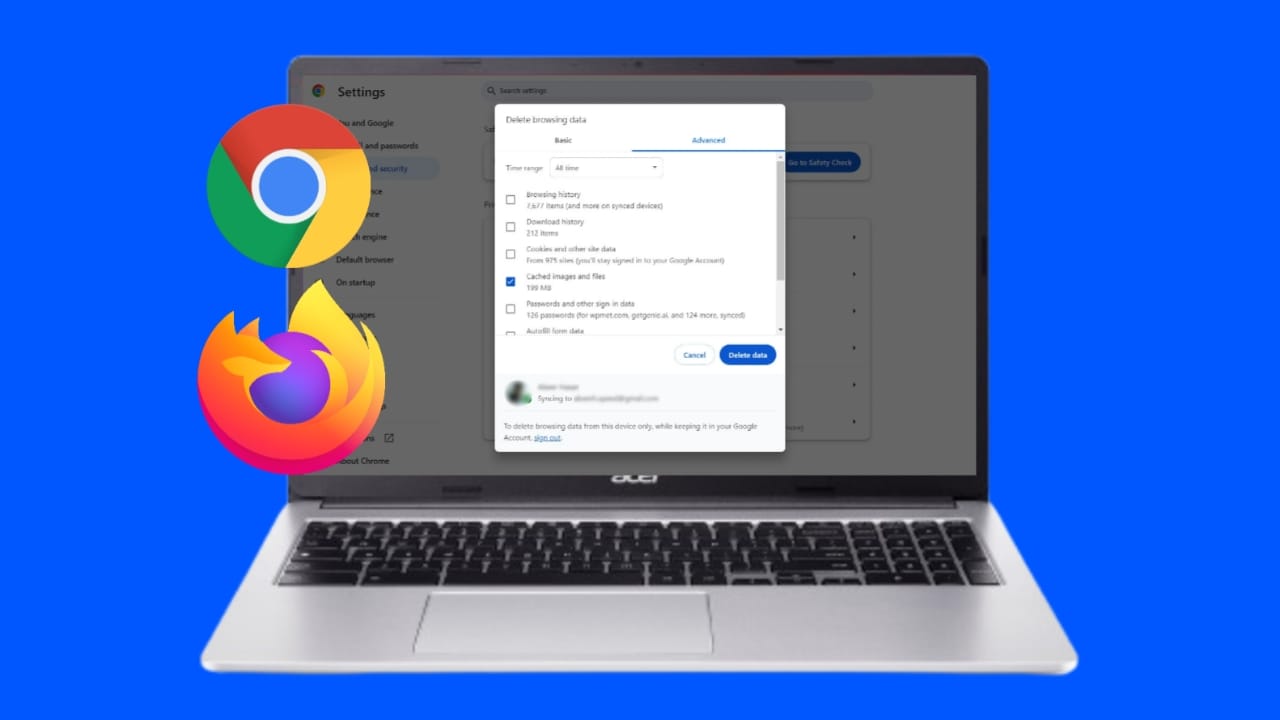
Clearing your browser cache and cookies is important. It helps improve browser performance and ensures security. Cache stores temporary files, and cookies store user preferences. Over time, these can slow browsers or cause errors.
Here, I will teach you how to clear browser cache cookies on popular browsers. Follow these methods to ensure a smooth browsing experience.
also read: How to Unmute Instagram Notes Easily: A Beginner Guide in 2025!
What Is a Cache?
A cache is a temporary storage area for browser files. These files include images, fonts, and website data. Caching helps websites load faster during future visits. It saves time by avoiding re-downloading files repeatedly. However, an overloaded cache can slow down your system. Regularly clearing it helps maintain smooth performance.
Why Should You Clear Cache?
Improve Browser Speed
A large cache can slow your browser’s performance. Clearing it frees up storage and speeds up page loading.
Fix Website Errors
Sometimes, cached data causes outdated or partial webpage loading. Clearing the cache ensures you see updated pages.
Maintain Security
Clearing cache protects your private data on shared computers. It prevents unauthorized users from accessing stored files.
What Are Cookies?
Cookies are small text files stored by websites. They save user preferences and login details. Cookies also track browsing behavior for personalized ads. Though useful, cookies can compromise privacy and security. Clearing cookies regularly protects your personal information.
Differences Between Cache & Cookies
Though similar, cache and cookies serve different purposes. Cache speeds up loading by storing website files locally. Cookies save user-specific data like preferences or login details. Cookies expire after some time, while cache files stay until deleted.
How to Clear Browser Cache Cookies
Follow these steps for each browser to clear cache cookies:
Google Chrome (Desktop)
- Click the three-dots icon at the top-right corner.
- Navigate to Settings > Privacy and security.
- Select Clear browsing data.
- Check options for Cookies and site data and Cached files.
- Choose a time range, like All time.
- Click Clear data to finish the process.
Google Chrome (iOS)
- Open Chrome on your iOS device.
- Tap the menu icon at the bottom-right corner.
- Go to Settings > Privacy.
- Select Cookies and Cached Images.
- Set the time range to All time.
- Confirm by clicking Clear browsing data.
Safari (macOS)
- Open Safari and click Safari in the top menu.
- Go to Preferences > Privacy tab.
- Select Manage Website Data and click Remove All.
- Confirm by clicking Remove Now.
- Quit Safari to save the changes.
Microsoft Edge (Windows)
- Open Edge and click the three-dots icon.
- Navigate to Settings > Privacy, search, and services.
- Under Clear browsing data, select Choose what to clear.
- Check options for Cookies and Cached files.
- Click Clear now and restart Edge.
Mozilla Firefox (Desktop)
- Open Firefox and click the menu icon (three lines).
- Go to Settings > Privacy & Security.
- Under Cookies and Site Data, click Clear data.
- Select options for Cookies and Cached data.
- Click Clear and restart Firefox.
Advanced Browser Settings
Clearing cache and cookies is essential, but configuring your browser for automatic maintenance can make your browsing experience smoother. Here’s how you can adjust advanced settings for automated clearing:
Automatic Clearing of Cache & Cookies
Most modern browsers allow users to set up automatic cache and cookie clearing at the end of each session. This ensures your browser stays clean without manual intervention:
Google Chrome:
- Go to Settings > Privacy and Security > Cookies and other site data.
- Select the option Clear cookies and site data when you close all windows.
Mozilla Firefox:
- Navigate to Settings > Privacy & Security.
- Under Cookies and Site Data, enable Delete cookies and site data when Firefox is closed.
Microsoft Edge:
- Open Settings > Privacy, search, and services.
- Under Clear browsing data on close, choose what should be deleted automatically.
Benefits of Automatic Clearing
- Protects your privacy when using shared or public computers.
- Ensures you always load the latest website versions.
- Reduces storage space occupied by unnecessary data.
However, enabling automatic clearing may require frequent re-login to websites, so use a password manager for convenience.
Benefits of Clearing Cache Cookies
Optimize Browser Performance
- Removing old data reduces load times and boosts speed.
- Protect Privacy
- Clearing cookies removes saved personal information.
- Access Latest Content
- Deleting cache ensures websites display updated content.
- Fix Loading Issues
- It resolves errors like partially loaded or slow websites.
Step-by-Step Keyboard Shortcut
For faster clearing, use the following shortcut:
- Press Ctrl+Shift+Delete (Windows) or Command+Shift+Delete (Mac).
- Follow on-screen instructions to clear cache cookies.
Third-Party Tools for Cache Cleaning
While browsers provide manual cache-clearing options, third-party tools simplify the process, especially for users managing multiple browsers or devices. Here are some popular tools to consider:
CCleaner
A widely-used cleaning tool for Windows and Mac.
Features:
- Clears cache, cookies, and temporary files from browsers.
- Includes registry cleaning and system optimization tools.
- Supports multiple browsers like Chrome, Firefox, and Edge.
- Use Case: Ideal for users who want an all-in-one maintenance tool.
CleanMyMac
A macOS-exclusive tool that optimizes performance.
Features:
- Clears browser cache and cookies in a single click.
- Removes unnecessary system junk and large unused files.
- Monitors system health for improved efficiency.
- Use Case: Best for Mac users seeking automated cleaning solutions.
Browser-Specific Extensions
Many browsers offer extensions for cache management.
Examples:
- Click&Clean for Chrome.
- Clear Cache for Firefox.
- Use Case: Great for quick cache clearing without navigating settings.
Using third-party tools ensures consistency and reduces manual effort, especially for users who frequently switch between multiple browsers.
Importance of Regular Clearing
Avoid Storage Overload
Overloaded cache uses disk space unnecessarily. Clearing prevents this problem.
Prevent Security Threats
Cached data can become a target for malware. Regular clearing protects your system.
Enhanced Experience
Frequent clearing ensures smooth browsing and better performance.
Using a VPN for Extra Privacy
A VPN enhances privacy without clearing cache cookies often. It encrypts data and blocks ad trackers. VPNs also hide your browsing activity from third parties.
Tips for Public Computers
Clearing browser cache cookies is essential on shared devices. This prevents others from accessing your browsing history. Always log out of accounts before leaving public computers.
How Often Should You Clear Cache Cookies?
Clear your browser cache cookies at least once a month. Do it weekly if you browse intensively or use shared computers.
Security & Privacy Tips
Clearing cache and cookies not only improves performance but also boosts online security and privacy. Here are some tips to maximize safety:
1. Use Incognito Mode
When using shared or public computers, browse in incognito mode. This prevents saving cache, cookies, or browsing history, eliminating the need for manual clearing.
2. Block Third-Party Cookies
Third-party cookies track your online behavior for targeted ads. Most browsers allow you to block them:
Google Chrome: Go to Settings > Privacy and Security > Cookies and other site data. Enable Block third-party cookies.
Mozilla Firefox: Navigate to Settings > Privacy & Security. Enable Enhanced Tracking Protection.
3. Beware of Public Computers
Always clear cookies and cache after using a public computer. Forgetting this step could expose your login credentials to the next user.
4. Use a VPN for Privacy
A Virtual Private Network (VPN) encrypts your internet connection, hiding your browsing activity. VPNs also prevent tracking by third-party cookies. Reliable options include:
- NordVPN
- ExpressVPN
- Kaspersky Security Connection
5. Regular Maintenance
Schedule monthly cache and cookie clearing to ensure optimal performance and security. Use browser settings or tools like CCleaner for consistent results.
FAQs
What’s the difference between clearing cache and deleting cookies?
Cache stores website files like images and scripts to load pages faster, while cookies save user preferences and login details. Clearing cache improves performance, while deleting cookies resets personalization.
Does clearing cache or cookies delete browsing history?
No, clearing cache or cookies does not delete browsing history. Browsing history must be cleared separately in the browser settings.
Will clearing cookies delete saved passwords?
It depends on the browser settings. Most browsers store passwords separately, but some cookies might store login sessions. Always use a password manager for security.
Why does my browser slow down if I don’t clear cache?
Old cache files can corrupt over time or take up significant storage space, slowing down browsing performance. Regular clearing keeps your browser efficient.
Is it safe to clear cache and cookies regularly?
Yes, clearing cache and cookies is safe and recommended. It improves performance, enhances privacy, and ensures you view the latest website versions.
The Final ThoughtsÂ
Clearing browser cache and cookies is vital for speed and safety. It ensures updated pages and protects private information. Follow the steps above for all major browsers.
Make it a habit to clear data regularly for better browsing. If you’re concerned about privacy, consider using a VPN. Enjoy a smoother, faster, and more secure online experience.











Nice