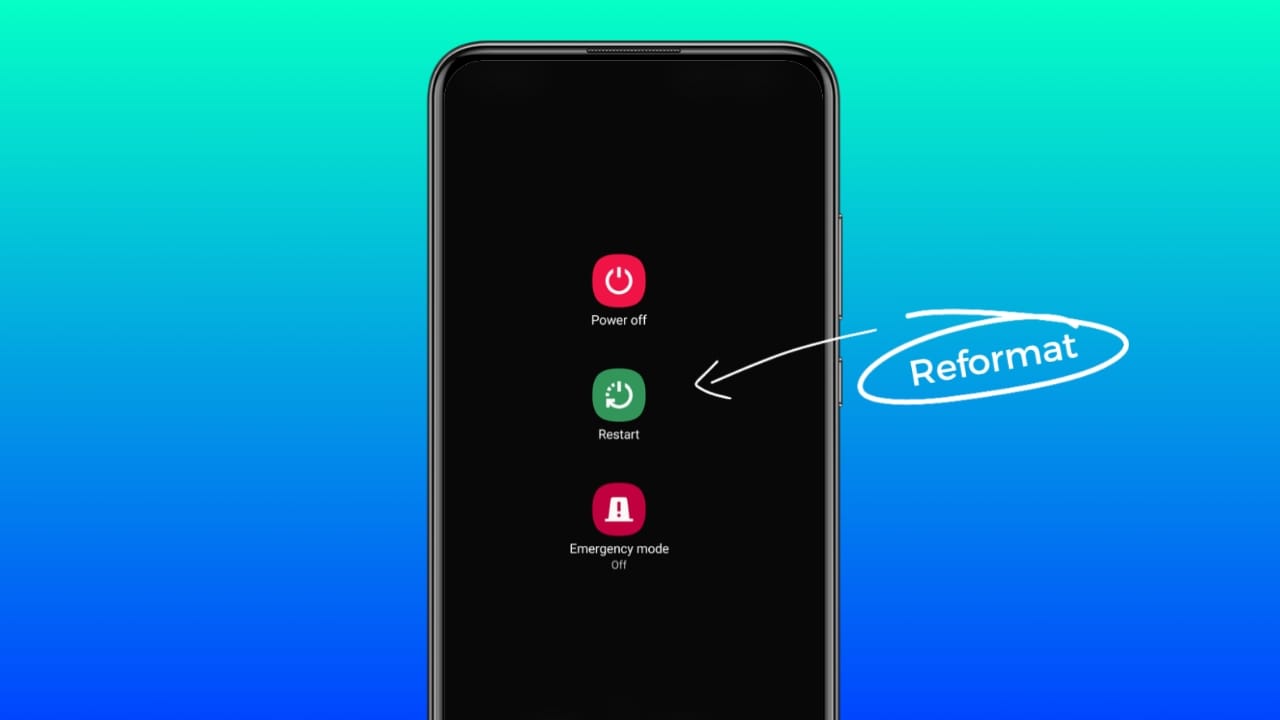
- Reformatting Android means a factory reset from Settings.
- Back up photos, chats and accounts before you erase the phone.
- Remove your Google account before selling to avoid reset lock.
To reformat an Android phone, back up your data, then open Settings > System > Reset options > Erase all data (factory reset) and confirm. On Samsung Galaxy phones the path is Settings > General management > Reset > Factory data reset. The phone restarts and returns to its out-of-the-box state.
A factory reset permanently erases apps, photos, messages and settings stored on the phone, so prepare carefully before you start.
When Should You Reformat an Android Phone?
- You are selling, giving away or trading in the phone.
- The phone is very slow, crashing or full of problems that normal fixes did not solve.
- You want a completely clean start after a major software issue.
Before You Reset: Back Up and Prepare
- Back up photos and videos with Google Photos or copy them to a computer.
- Turn on Google backup under Settings > System > Backup (or Settings > Google > Backup) to save apps, call history, contacts and settings.
- Back up chats inside apps such as WhatsApp, because these use their own backup.
- Charge the phone to at least 50% or keep it plugged in.
- Note your Google account email and password. After the reset, Factory Reset Protection asks for the account that was on the phone.
- If you are selling the phone, remove your Google account and any screen lock first.
How to Factory Reset a Google Pixel or Stock Android Phone
- Open Settings.
- Tap System > Reset options.
- Tap Erase all data (factory reset).
- Tap Erase all data, enter your PIN, pattern or password, and confirm.
How to Factory Reset a Samsung Galaxy Phone
- Open Settings > General management.
- Tap Reset > Factory data reset.
- Review the list of accounts and data that will be removed, then tap Reset.
- Enter your screen lock and tap Delete all.
Other Android Brands
On OnePlus, Xiaomi, Motorola, Vivo, Oppo and others, open Settings and search for Reset or Factory reset. The option is usually under System, Additional settings or About phone.
If You Cannot Open Settings
If the phone will not start properly, you can reset it from recovery mode. The button combination differs by brand, so check your manufacturer’s support page. If the phone is lost, Google’s Find My Device can erase it remotely.
How to Format an SD Card on Android
To wipe only a memory card, go to Settings > Storage, select the SD card, open the menu and choose Format. This erases everything on the card but leaves the phone untouched.
After the Reset
- Sign in with your Google account and choose a backup to restore.
- Update the phone software and reinstall apps from the Play Store.
- Turn on security features again, such as Theft Detection Lock on Android.
Switching to Apple? Here is how to erase and reset an iPhone too.
Final Takeaway
Reformatting an Android phone means a factory reset from Settings: System > Reset options on Pixel or General management > Reset on Samsung. Back up first, keep your Google account details ready, and remove your account before selling.
Frequently Asked Questions
Does a factory reset remove viruses?
It removes apps and files on the phone, which clears most malware. Restore only trusted apps afterwards.
Will a factory reset delete my Google account?
No. It removes the account from the phone, but your Google account and cloud backups stay safe online.
How long does a factory reset take?
Usually a few minutes, though some phones take longer depending on storage size.
What is Factory Reset Protection?
It is a security feature that asks for the previous Google account after a reset, which stops thieves from using a stolen phone.