- Low Power Mode reduces background activity to extend battery life.
- Turn it off from Battery settings on iPhone or iPad, Control Center on Apple Watch, and Battery Saver settings on Android.
- Turn it back on whenever you need longer battery life.
Turn Off Low Power Mode when performance matters. This setting helps phones conserve battery during emergencies. However, it can restrict several important device functions. To learn how to switch it on and automate it, read our guide on how to use Low Power Mode on iPhone.
Apps may refresh slower and notifications may arrive late. Disabling it restores your phone’s normal behavior.
Get Rid of Low Power Mode on iPhone
Your iPhone can save battery using Low Power Mode. This feature becomes useful during long days away. It also helps when charging options remain unavailable. For long-term care, see these tips to make your smartphone last longer.
However, saving battery comes with several small compromises. Your iPhone reduces certain background activities during this mode. Some apps may refresh less often than usual. Notifications can also arrive later than expected sometimes.
Your display may also behave differently during Low Power. Supported iPhones can reduce their refresh rate significantly. Some visual effects can become less noticeable too. Background downloads may also experience certain restrictions.
That sounds useful during emergencies, but annoying otherwise. If your battery has enough remaining charge, disabling Low Power Mode makes sense.
Disable Low Power Mode Through Settings
The Settings app offers the most reliable method. You can disable the feature within several quick steps.
Follow these steps on your iPhone:
- Open the Settings app from your Home Screen.
- Scroll down and select Battery from there.
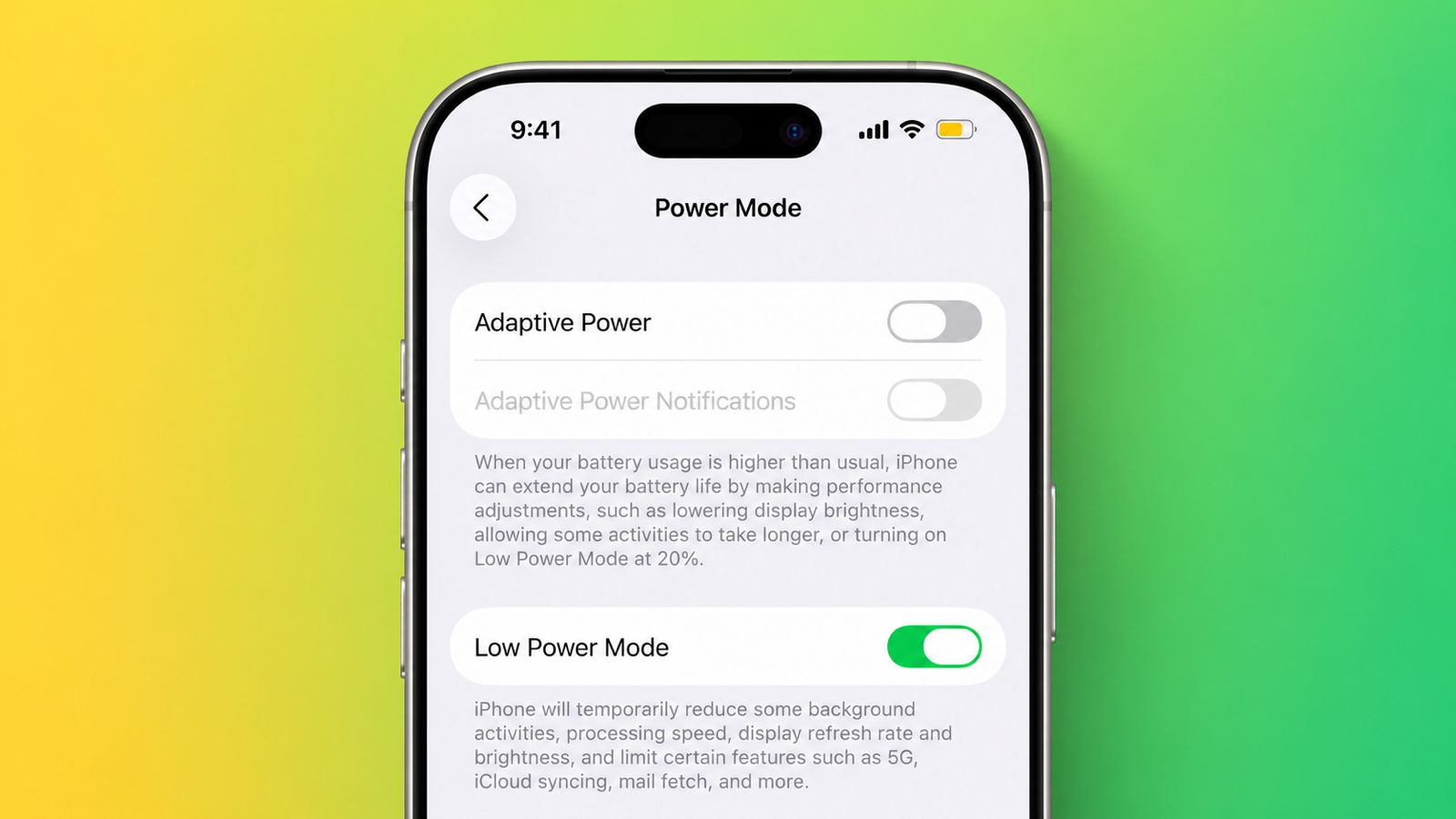
- Select Power Mode on supported newer iPhones.
- Find the Low Power Mode option there.
- Switch Low Power Mode to the off position.
Older iPhone models can show different menu layouts. Some models display Low Power Mode directly instead. Therefore, don’t worry if menus look slightly different.
Once disabled, your iPhone should resume normal behavior. Background tasks can begin working normally again afterward.
Disable Low Power Mode Through Control Center
Control Center provides an even faster solution. You can change battery settings without opening Settings.
First, open the Control Center on your iPhone. Newer iPhones require a downward swipe gesture. Swipe from the upper-right corner of your display.
Older iPhones have another Control Center gesture. Swipe upward from the screen’s bottom edge instead.
Then locate the battery-related control available there. Tap the control to disable Low Power Mode. The yellow battery indicator should disappear afterward.
This method works especially well when you’re busy:
- You avoid opening multiple Settings menus.
- You can change the setting within seconds.
- You can quickly restore normal phone performance.
- You can easily check the current battery status.
However, the battery control may require customization first. You can add suitable controls through Control Center settings.
Ask Siri To Disable Low Power Mode
Siri offers another hands-free solution for iPhone users. This method works especially well while you’re busy.
Simply activate Siri using your usual voice command. Then ask Siri to turn Low Power Mode off.
You can say, “Hey Siri, turn off Low Power Mode.”
Siri should process the command within a few seconds. Your iPhone should then return toward normal operation.
Disable Low Power Mode on iPad
iPads also support Apple’s Low Power Mode feature. The process remains simple across supported iPad models.
Open Settings and select Battery from there. Find Low Power Mode within the available options. Switch the setting off to restore normal operation.
You can also access battery controls through the Control Center. Add the relevant control when it isn’t already visible.
Apple devices can automatically disable Low Power Mode. This generally happens after charging reaches around eighty percent.
Switch it Off on Apple Watch
Apple Watch includes its own Low Power Mode feature. It helps extend battery life during longer usage periods.
However, some functions can change while it’s enabled. Certain network and background functions may become limited.
Disable Low Power Mode on Apple Watch
The process takes only a few simple steps.
Follow these instructions on your Apple Watch:
- Touch and hold the screen’s bottom area.
- Wait until the Control Center appears.
- Tap the battery percentage button afterward.
- Find the Low Power Mode setting there.
- Switch Low Power Mode to the off position.
Your Apple Watch should then return toward normal behavior.
This can restore features affected by power-saving restrictions. It can also provide normal performance during everyday usage.
Turn Off on Android
Android phones generally use the Battery Saver feature. However, manufacturers can give it different names. You might see Power Saving Mode instead. Some phones also offer Extreme Battery Saver settings.
Battery Saver becomes useful when your battery gets low. Many Android phones activate around twenty percent. However, your selected automatic percentage can vary.
The feature reduces background activity to save power. It can also reduce certain visual effects and functions.
Disable Battery Saver Through Settings
Settings provide the most dependable Android method available. However, menu names vary between manufacturers and models.
Start by opening your phone’s Settings application. Then locate and select the Battery section.
Depending upon your phone, look for these options:
- Battery Saver
- Power Saving Mode
- Battery and device care
- Battery and performance
- Power management
Select the option matching your phone’s available settings. Then switch Battery Saver to the off position.
Your phone should immediately begin normal operation again. Background activities can then resume according to permissions.
Disable Battery Saver Through Quick Settings
Quick Settings provides the fastest Android solution available. You don’t need to search through Settings menus.
Start by swiping down from the screen’s top. Find the Battery Saver tile inside Quick Settings.
Tap the tile once to disable Battery Saver. Some manufacturers call this tile Power Saving instead.
Can’t find the battery-saving tile immediately? Swipe down again to expand Quick Settings. You should then see additional available controls.
This method proves especially useful when the battery remains sufficient. You can restore normal performance almost instantly.
Turn Off Extreme Battery Saver
Some Android devices provide Extreme Battery Saver too. This feature applies much stronger battery-saving restrictions overall.
It can pause many applications during extremely low battery. Only essential applications may continue operating normally.
If your phone offers this feature, check Battery settings. Find Extreme Battery Saver and switch it off.
This restores normal application behavior across your device. However, exact restrictions differ between Android manufacturers.
Stop Battery Saver From Activating Automatically
Automatic Battery Saver can sometimes become frustrating. Your phone might repeatedly enable it without warning.
Most Android devices provide automatic activation settings. These settings can trigger Battery Saver at percentages.
For example, your phone might activate it around twenty-percent. Some devices allow completely different activation percentages.
Change Android’s Automatic Battery Settings
Open Settings and select Battery first. Then choose Battery Saver from available options.
Look for settings involving schedules or automatic activation. Some phones show Schedule and reminders instead.
You may find options allowing specific battery percentages. Choose a percentage that suits your everyday usage.
If you want manual control instead, disable scheduling. Select No schedule when your phone provides that option.
This prevents Battery Saver from activating automatically later. You can then enable it whenever you personally need.
Check iPhone Automation Settings Too
iPhones can also activate power-saving features automatically. Shortcuts automations can trigger Low Power Mode sometimes.
If Low Power Mode keeps returning unexpectedly, investigate automations. Open the Shortcuts app and review available automations.
Look for automation rules connected with battery levels. Remove or disable unwanted rules when necessary.
This gives you greater control over power-saving behavior.
What Happens When Low Power Mode Stays Enabled?
Low Power Mode changes more than battery consumption. It can affect how your phone behaves daily.
Background app activity becomes more restricted during power-saving. Applications may therefore refresh less frequently than before.
You may notice delayed notifications from certain applications. Email synchronization can also happen less frequently sometimes.
Other possible changes include:
- Background refresh becomes more limited overall.
- Automatic downloads can become temporarily delayed.
- Some visual effects can become reduced.
- Screen brightness can become lower automatically.
- Higher refresh rates may become unavailable.
- Certain network functions can become restricted.
- Overall device performance can feel slightly slower.
These changes help your battery last significantly longer. However, they can make everyday phone usage frustrating.
Why Should You Turn Low Power Mode Off?
Battery-saving features remain extremely useful during emergencies. They become less useful near a reliable charger.
Suppose your battery has plenty remaining. You probably don’t need aggressive power-saving restrictions then.
Turning the feature off restores normal phone functionality. Applications can synchronize and refresh more regularly afterward.
Notifications should also arrive more consistently after disabling. Downloads can continue without battery-saving restrictions afterward.
Your device may also restore higher performance settings. Supported displays can return toward higher refresh rates.
However, improvements depend upon your particular device. Manufacturers apply different restrictions during battery-saving modes.
Save Battery Without Using Low Power Mode
You don’t always need aggressive battery-saving settings. Several simple changes can preserve the battery without restrictions.
Lower Your Screen Brightness
Your display can consume significant battery during everyday usage. Lower brightness can therefore provide noticeable battery savings.
Keep brightness comfortable without making your screen unnecessarily bright.
Use Adaptive Battery on Android
Some Android devices provide Adaptive Battery features. These features learn your normal phone usage patterns.
The system can then adjust background power consumption. This can improve battery efficiency during everyday usage.
Limit Your Screen Refresh Rate
Higher refresh rates can consume additional battery power. Reducing refresh rates can extend battery life instead.
iPhone users can limit frame rates when supported. Open Settings > Accessibility > Motion first.
Then enable Limit Frame Rate when appropriate. This can reduce display power consumption without Battery Saver.
Avoid Excessive Heat
Heat can negatively affect battery performance over time. Extremely hot phones can also drain batteries faster.
Avoid leaving your phone inside hot environments. Don’t expose it unnecessarily to direct sunlight.
Reduce Unnecessary Background Activity
Unused applications can consume power in the background. Review which applications actually need background access.
Disable unnecessary background permissions when possible. This can preserve battery without restricting your entire phone.
Use Battery Settings For Better Control
Your phone’s Battery settings provide useful information. Check which applications consume the most battery.
You can then identify unnecessary power consumption quickly. This approach provides better control over everyday battery usage.
As We Conclude
Turn Off Low Power Mode when normal performance matters. Battery Saver remains useful during genuinely low battery situations.
However, disabling it restores regular phone functionality. Android and iPhone users have simple options. Check automatic settings when power-saving keeps returning unexpectedly.