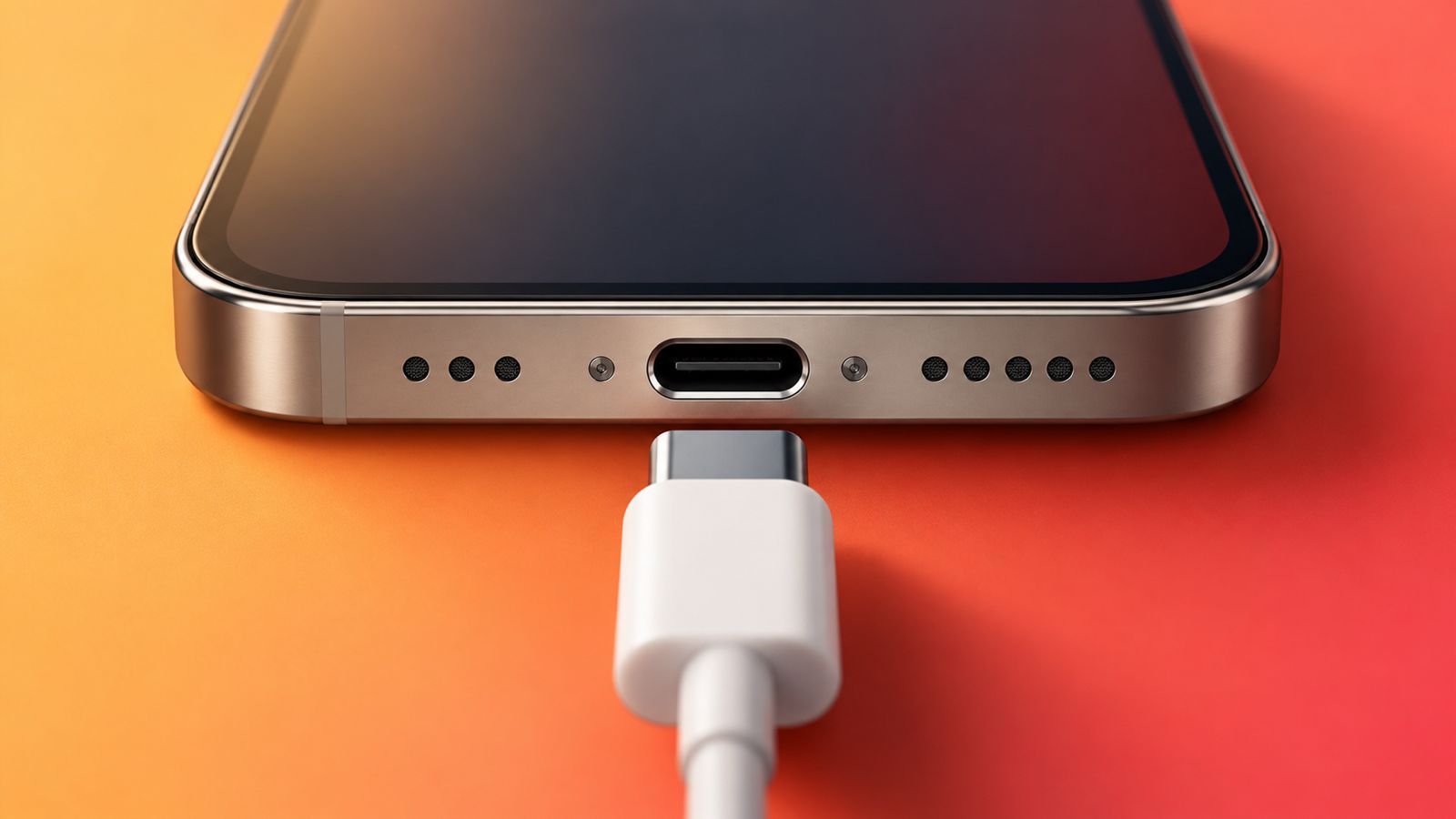
- Most iPhone USB-C charging problems come from a faulty cable or adapter, a dirty port or a software glitch.
- Test another cable, adapter and outlet, restart your iPhone and install iOS updates first.
- Clean the port gently without metal tools, let it dry fully if wet, and get it repaired if the port is loose or damaged.
If your iPhone USB-C port is not charging, fix the problem before it interrupts your daily routine. A phone that refuses charging can feel frustrating, especially during busy days.
Dust, faulty accessories, software glitches, and physical damage often cause these problems. Thankfully, several safe checks can help identify the real issue.
Basic Troubleshooting of USB-C Port Not Charging
Before assuming your iPhone needs expensive repairs, check its accessories. A faulty cable or adapter can easily interrupt charging.
Sometimes, the problem comes from your electrical outlet instead. Start with these simple checks before inspecting internal hardware.
1. Check Your USB-C Cable and Charging Adapter
Your charging cable connects your iPhone with its power source. Even minor cable damage can interrupt charging or syncing.
Inspect both connectors for dirt, bends, and loose connections. Never use cables with exposed wires or damaged insulation.
For reliable results, use an Apple-certified USB-C cable. Choose a compatible charging adapter from a trusted manufacturer.
Then, test another cable with your existing charger. If charging resumes, your original cable probably needs replacement.
Try these quick checks:
- Inspect both ends of your charging cable.
- Look for broken insulation or bent connectors.
- Test another compatible USB-C cable.
- Try another suitable charging adapter.
- Avoid damaged accessories that interrupt electrical connections.
If another adapter solves the problem, replace yours. Otherwise, continue checking your iPhone for other issues.
2. Check Your Power Source
Sometimes, your charging equipment works perfectly fine elsewhere. The electrical outlet might be causing your charging problem. Plug your charger into another working wall outlet. You can also test another suitable power source.
If your iPhone starts charging, the original outlet caused trouble. If charging still fails, continue troubleshooting your device.
3. Restart Your iPhone and Update iOS
Software glitches can sometimes interrupt normal charging connections. Restarting your iPhone may clear these temporary problems. It takes only a few moments and requires no tools. If the screen is frozen and will not respond, see our guide on how to turn off an iPhone from a computer for force restart and recovery mode steps.
Follow these steps to restart your iPhone:
- Press and hold the Side button and either Volume button until the power-off slider appears.
- Drag the slider to switch off your iPhone.
- Wait approximately thirty seconds before restarting.
- Hold the Side button until Apple’s logo appears.
Reconnect your charger after the phone restarts completely. Check whether the charging symbol appears beside your battery.
Next, check whether your iPhone needs software updates. Open Settings, select General, then Software Update.
Download and install any available compatible updates. Updated software can resolve certain bugs and connection problems.
Fix by Cleaning and Inspecting It
If accessories work properly, inspect your charging port carefully. Pocket lint and dust commonly collect inside small openings.
Even tiny particles can prevent proper electrical contact. These obstructions may also interrupt computer syncing and connections.
4. Clean Your Charging Port Without Causing Damage
Turn off your iPhone before inspecting its charging port. Use good lighting to identify visible dirt and lint. Never force objects inside the connector during cleaning.
Keep these precautions in mind:
- Avoid metal objects, needles, and sharp cleaning tools.
- Never pour liquids directly inside the charging port.
- Avoid cotton swabs that might leave unwanted fibers.
- Never apply excessive pressure against delicate contacts.
- Follow Apple’s official cleaning instructions for your device.
Compressed air might seem convenient for removing stubborn dust. However, Apple’s cleaning guidance advises against using compressed air. Avoid risky cleaning methods that could damage internal components.
After removing accessible debris safely, reconnect your charging cable. Check whether charging and computer syncing work normally. If charging works but your Mac cannot see the phone, read our guide on iPhone not showing up in Finder. If problems continue, the port might need professional inspection.
5. Look for Moisture and Corrosion
Humidity can gradually affect your charging port’s internal components. Moisture entering the connector may cause metal contacts to corrode. Corrosion can weaken connections and interrupt charging performance. Water exposure may also damage other internal components.
If your iPhone detects liquid, disconnect its charging cable. Never attempt wired charging while the connector remains wet. Leave your phone somewhere dry with good airflow. Avoid external heat, compressed air, and inserting objects.
Allow the connector to dry completely before reconnecting. Drying can take up to twenty-four hours sometimes. Follow Apple’s liquid-detection instructions whenever moisture is suspected.
6. Check for Physical Damage and Loose Connections
Dropping your iPhone can damage its charging port. Accidental impacts may also loosen internal hardware connections.
Damaged pins or metal contacts can interrupt electrical connections. Such problems usually require professional inspection and appropriate repairs.
Watch for these warning signs:
- Your charging cable feels unusually loose inside.
- Charging works only when you change cable positions.
- Your iPhone repeatedly disconnects during charging.
- Your computer cannot recognize your connected iPhone.
- Charging fails with several working cables and adapters.
Never force a cable into a loose connector. Doing so can worsen damage and increase repair expenses. Stop using damaged accessories and arrange professional inspection.
7. Test Different Accessories Before Seeking Repairs
Testing different accessories helps identify the actual problem. Connect your iPhone using another compatible USB-C cable. Then, test another suitable adapter and electrical outlet.
If another charger works, replace your faulty original adapter. If several accessories fail, inspect the charging port. Persistent problems may indicate damaged contacts or internal hardware.
Fix With Professional Help
If basic troubleshooting fails, professional diagnosis becomes important. A damaged charging port might require specialist repair. Technicians can inspect internal contacts and identify hardware problems. They can also determine whether replacement parts are necessary.
Where Should You Get Your iPhone Repaired?
Apple may provide eligible repairs under warranty coverage. AppleCare+ benefits depend on your specific plan and circumstances. Contact Apple Support to confirm available repair options.
In India, you can book a repair through the Apple Support app or website, visit an Apple Store in cities such as Mumbai, Delhi, Bengaluru or Pune, or go to an Apple Authorised Service Provider. Local repair shops may cost less, but they may not use genuine parts and could affect your warranty.
Professional technicians may help with several common problems:
- Loose or broken USB-C charging port connections.
- Broken screens requiring suitable replacement parts.
- Batteries that no longer hold sufficient charge.
- Software problems affecting normal device operation.
- Water damage requiring professional inspection.
Before booking, confirm repair prices and available services. Ask whether original replacement parts are available.
Check the repair warranty and expected completion time. Choose qualified technicians instead of attempting risky hardware repairs.
Frequently Asked Questions
Why is my iPhone USB-C port not charging?
Common causes include dirty ports and damaged charging cables. Faulty adapters, software glitches, and hardware damage also contribute.
Can I clean my charging port using a toothbrush?
A soft, dry brush may remove accessible surface debris. However, avoid inserting anything that could damage connectors. Follow your device manufacturer’s specific cleaning instructions.
Why does my iPhone charge very slowly?
Low-power adapters and damaged cables can slow charging. Debris or unsuitable accessories may also cause charging problems. Test compatible accessories before arranging professional repairs.
Can Apple replace my damaged charging port?
Apple may offer repairs depending on your coverage. Contact Apple Support to confirm eligibility and repair costs.
Why does my charging cable feel loose?
Frequent cable movement, accidental drops, and physical impacts contribute. Dust, corrosion, and damaged internal contacts may cause problems.
As We Conclude
Fix iPhone USB-C Port Not Charging problems by checking accessories first.
Restart your phone and inspect its charging port carefully. Safe troubleshooting helps protect your iPhone from further damage.