Lock Safari Private Browsing tabs helps people browse without saving personal data. It does not store history, cookies, or searches. However, open private tabs remain visible sometimes.Â
Anyone can see them on unlocked devices. Apple added extra protection using biometrics. Face ID, Touch ID, or passcodes now secure tabs.
Understanding Safari Private Browsing and Tab Locking
It works like a hidden browsing mode. It prevents saving website history and browsing data. Cookies and trackers are removed after sessions close.
Downloads and bookmarks still remain saved. Private browsing helps users stay discreet online. However, privacy gaps still existed earlier.
Earlier, anyone could open private tabs easily. If a device stayed unlocked, tabs remained visible. This caused privacy risks for shared devices. Family members or coworkers could access private tabs.
Apple noticed this important privacy concern. Locked private browsing was introduced to solve it.
Locked private browsing hides tabs behind authentication screens. Face ID, Touch ID, or passwords protect access. Only verified users can view private tabs.
This applies even when devices are unlocked. Safari locks tabs automatically after inactivity. Locking happens quietly in the background.
Safari locks private tabs when screens turn off. Locking also occurs when devices sleep. Switching apps triggers tab locking.
Screensavers cause automatic protection too. This ensures privacy during short absences. Users can safely leave devices unattended.
This feature works natively inside Safari. No extra applications are required. Apple designed it for ease and security.
On Mac computers, it activates by default. On iPhone and iPad, users enable it manually. Once enabled, protection remains consistent.
Locked private browsing is ideal for shared devices. Families using one iPad benefit greatly. Office Macs stay protected from others.
Personal searches remain hidden always. Banking, health, and work research stays secure. This feature strengthens everyday digital privacy.
Requirements Before Using Locked Private Browsing
Before using this feature, some conditions apply. Devices must support newer operating systems. Older software versions lack required options. Users should update their devices first.
iPhone and iPad require iOS seventeen minimum. Mac computers need macOS Monterey or later. Safari must be version seventeen or newer. These versions include locking support.
Face ID or Touch ID must be enabled. Devices without biometrics require passcodes. Authentication must be active before enabling locking. Without authentication, tabs cannot lock.
Safari settings may sync using iCloud. Locking behavior still applies per device. Each device needs individual setup. This improves security across all devices.
How to Lock Safari Private Browsing Tabs on iPhone and iPad
The feature is controlled from device settings. Users only need a few taps.
Open the Settings application on the device. Scroll down and select the Apps section. Find Safari from the app list. Open the Privacy and Security section next.
Enable the option requiring Face ID unlock. Touch ID appears on supported devices. Confirm using biometrics or device passcode. The feature activates immediately afterward.
Once enabled, Safari behavior slightly changes. Open Safari and enter private browsing mode. Load any website or start page. This action activates locking protection fully.
Existing private tabs lock automatically afterward. Authentication is required for future access. Safari becomes more protective instantly.
Private tabs lock when switching applications. Locking also occurs during inactivity. When the screen turns off, tabs lock. Locking also happens when devices sleep.
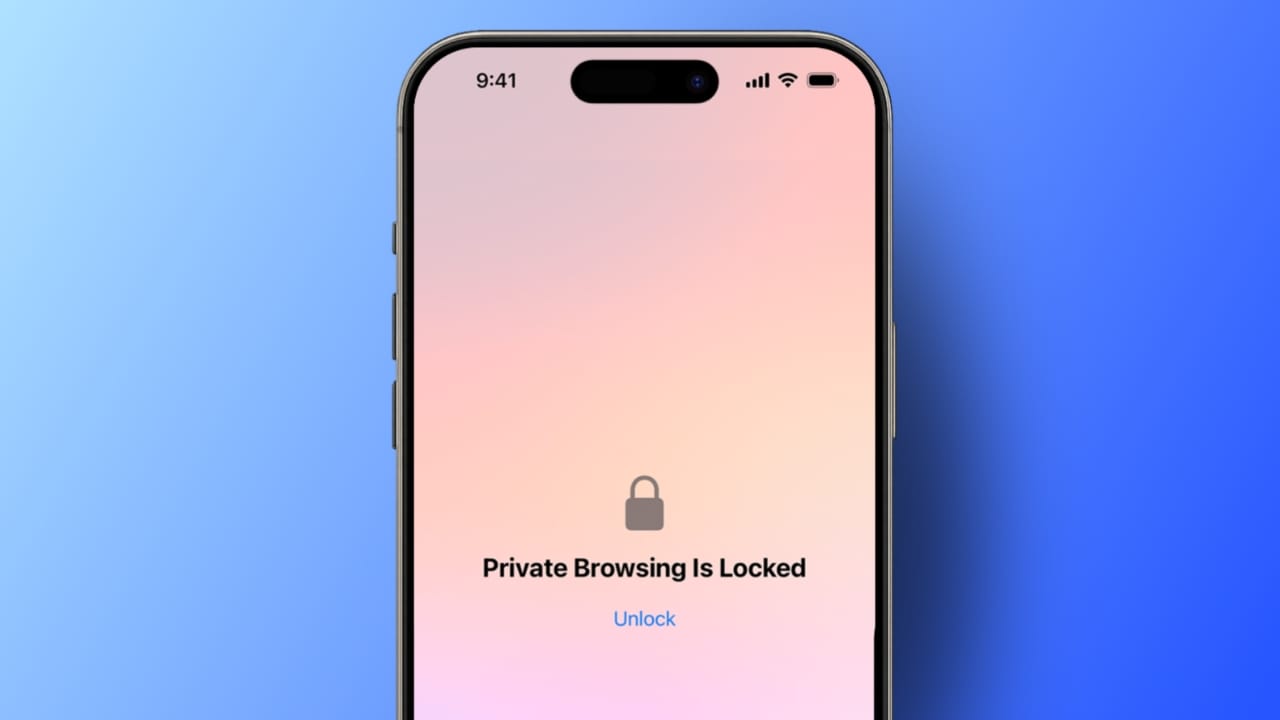
Returning to Safari shows a lock screen. A clear unlock button appears. Authentication is required before browsing continues. Face ID or Touch ID works instantly.
Private tabs playing audio stay unlocked temporarily. Video playback prevents immediate locking. Regular browsing tabs remain unlocked always. Only private tabs receive protection.
How to Use Locked Private Browsing in Safari on Mac
Mac computers handle locked private browsing slightly differently. Newer macOS versions enable it automatically. Users should still check settings.
Open Safari from the Dock or Applications folder. Click Safari in the top menu bar. Select Settings from the menu. Open the Privacy tab inside settings.
Ensure Touch ID or password locking is enabled. This option protects private browsing windows. Once enabled, Safari manages locking automatically.
Private windows lock when Safari becomes inactive. Screensavers also trigger automatic locking. Locking happens when the Mac locks. Authentication is required for access again.
Mac users can also lock private tabs manually. This helps when stepping away quickly. Safari offers flexible manual controls.
Open the Window menu in Safari. Select Lock All Private Windows. This instantly secures private sessions.
Force quitting Safari also locks private windows. Locking the Mac screen works similarly. These options provide quick control anytime.
How to Unlock Safari Private Browsing Tabs
Unlocking private browsing is simple on all devices but the process varies slightly by platform.
On iPhone or iPad, open Safari first. Tap the three-dot icon on screen. Select the All Tabs option. Switch to the Private browsing section.
A lock screen appears immediately. Look at the camera for Face ID. Touch ID scans fingerprints quickly. If biometrics fail, enter the passcode manually.
After verification, private tabs reappear normally. Users can open new private tabs. Browsing continues without restrictions afterward.
On Mac computers, reopen private windows from Dock. A locked message appears instantly. Use Touch ID on the keyboard. Password entry works without Touch ID.
After verification, private browsing resumes normally. Keeping macOS updated reduces possible issues. Older systems may cause unlocking problems.
Turning Off Automatic Locking for Private Tabs
Apple allows disabling automatic locking if desired. This reduces security but increases convenience.
On iPhone or iPad, open Settings again. Go to Apps and select Safari. Scroll to Privacy and Security section. Disable Face ID or Touch ID requirement.
Private browsing will remain unlocked afterward. Anyone can access private tabs freely. Consider risks before disabling protection.
On Mac, open Safari settings again. Navigate to the Privacy tab. Uncheck the Touch ID locking option.
Private browsing will stay unlocked afterward. Manual locking remains available for Mac users.
Using Safari Debug Menu for Extra Control
Mac users can enable Safari’s hidden Debug menu. This menu offers advanced browsing features.
Open Terminal from Applications and Utilities. Enter the required command carefully. Press Enter to activate the menu.
A Debug menu appears beside Help. It contains web debugging tools. Avoid unknown options inside this menu.
To disable the Debug menu, open Terminal again. Enter the disable command. Press Enter to confirm removal. The Debug menu disappears immediately afterward. Use this feature only if necessary.
Extra Privacy Tips for Better Safari Protection
Locking the Safari app adds more privacy. Hidden apps stay protected from others.
iCloud Private Relay hides IP addresses online. It encrypts internet traffic automatically. This improves browsing privacy significantly.
VPN applications encrypt all device traffic. They protect beyond Safari alone. Trusted VPNs add extra security layers.
Clearing website data removes leftover information. Even private browsing may store small data. Regular clearing improves privacy.
Changing search engines reduces tracking risks. DuckDuckGo offers privacy-focused searching. Combined tools strengthen digital safety.
As We Conclude
Lock Safari Private Browsing tabs strengthens online privacy greatly. Face ID and Touch ID protect sensitive browsing. Private tabs stay hidden from others always. The feature works smoothly across Apple devices.Â
Setup remains simple for users worldwide. Automatic locking ensures constant protection. Combined with other tools, browsing becomes safer daily. Enable this feature today for peace.