Methods to Hide Contacts on iPhone protect personal privacy. Many people share phones with friends or family. Contacts often contain sensitive personal relationship details.
Call alerts may show names on lock screens. Message previews can expose private contact identities. Siri suggestions may reveal recently contacted people. iOS still lacks a direct hide contact feature. Users must rely on smart privacy workarounds.
Methods to Hide Contacts on iPhone Using Built-In Settings
People hide contacts for many practical reasons. Some want to protect personal relationships privately. Others want fewer names cluttering contact lists. Lock screen notifications often reveal contact names.
Missed calls can expose private numbers publicly.Siri suggestions show contacts without permission. Each concern needs a different hiding approach. One strong method is locking the Phone app.
This prevents access to contacts and call logs. It works well when sharing phones frequently. Face ID ensures only authorized users enter. Contacts remain safe from accidental viewing. Voicemail and call history stay protected too.
Creating contact groups helps reduce visibility. This method hides contacts from main lists. Contacts stay stored but remain out of sight. Users can create new lists easily. Gmail accounts work well for syncing groups. Contacts move into separate synced lists.
The main address book stays clean afterward. After syncing, contacts should be removed locally. This prevents them appearing in default lists. Settings allow disabling Gmail contact syncing. Contacts stay stored safely inside Gmail.
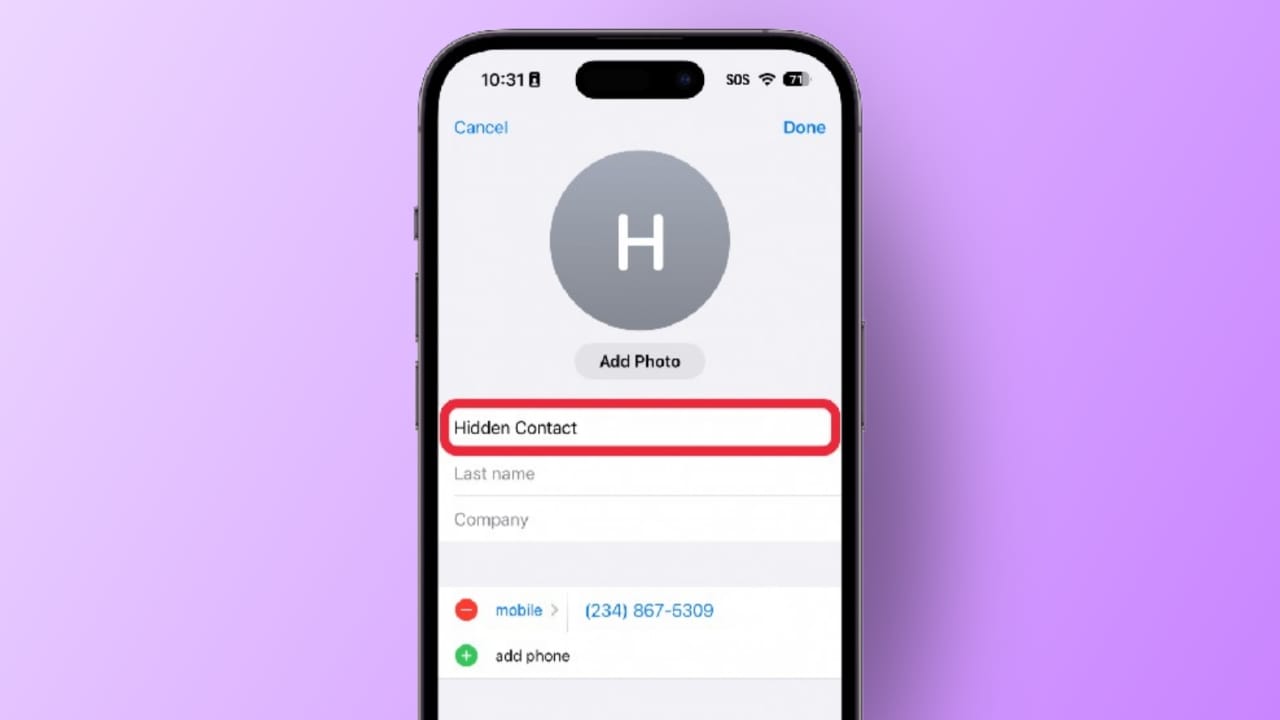
They remain accessible whenever needed again. Saving contacts with nicknames improves privacy. Nicknames replace real names during calls. Others cannot recognize the caller easily. This method protects identity during notifications.
Short Name settings must be enabled properly. Prefer Nicknames option ensures system usage. Contact photos may still reveal identities. Users can change posters to monograms. This removes visual clues during incoming calls.
Full screen caller photos become neutral symbols. This adds another layer of discretion. Notes app offers secure contact storage. Sensitive details can be saved inside locked notes. Notes support password and Face ID protection.
Even phone access will not reveal contents. Contacts can be deleted after saving safely. Spotlight search often exposes contact names. Typing letters may reveal related contacts. Siri learns habits and suggests contacts.
This can compromise privacy unexpectedly. Disabling Siri learning improves protection. Search visibility for Contacts should be disabled. After disabling, contacts stop appearing everywhere. They will not show in widgets. They will not appear in notifications. They will not surface during searches.
Methods to Hide Contacts on iPhone Using External Options
Google Contacts provides strong cloud-based privacy. Contacts can stay online instead of iPhone. This method works well for sensitive contacts. Hidden contacts do not sync to the iPhone. Users must access Google Contacts through browsers.
Contacts can be added individually online. Multiple contacts can also be hidden together. Google allows selecting several contacts easily. Hidden contacts move into the Other Contacts section. Phone numbers and names remain stored securely. After hiding, contacts can be deleted locally.
They remain accessible anytime online. Users can retrieve them whenever needed. This method prevents iPhone exposure completely. Third-party apps also hide contacts securely. Apps like GhostContact store private lists. Contacts saved here never appear on my iPhone. These apps can be locked with Face ID.
App hiding adds another privacy layer. Users should choose trusted secure apps. Encryption is important for contact safety. Unsafe apps may risk data leaks. Local apps can also hide contacts simply. Notes app allows locked contact storage.
Files app can store shared contact files. Contacts can be saved as files easily. Albums can store contact screenshots privately. Hidden albums reduce accidental exposure risks.
Methods to Hide Contacts on iPhone Completely
Sometimes users want all contacts hidden. Phones may be used by many people. Temporary hiding prevents accidental access. Screen Time offers effective access control.
Contacts app can be restricted easily. Screen Time requires enabling content restrictions. Allowed Apps section controls Contacts access. Disabling Contacts removes the app completely.
Contacts disappear until restrictions are removed. This method works well for short-term use. Another option is using a new Apple ID. Apple allows multiple Apple IDs per device.
Contacts can be moved into another account. That Apple ID can then be removed. Contacts stay accessible on other Apple devices. This method suits long-term privacy needs.
The Bottom Corner
Methods to Hide Contacts on iPhone keep data safe. Apple still lacks a built-in hide option. Smart workarounds help protect private information. Built-in settings reduce accidental contact exposure.
Cloud services store contacts securely online. Third-party apps add extra protection layers. Screen Time and Apple IDs hide contacts fully. Choosing correct methods ensures lasting privacy.