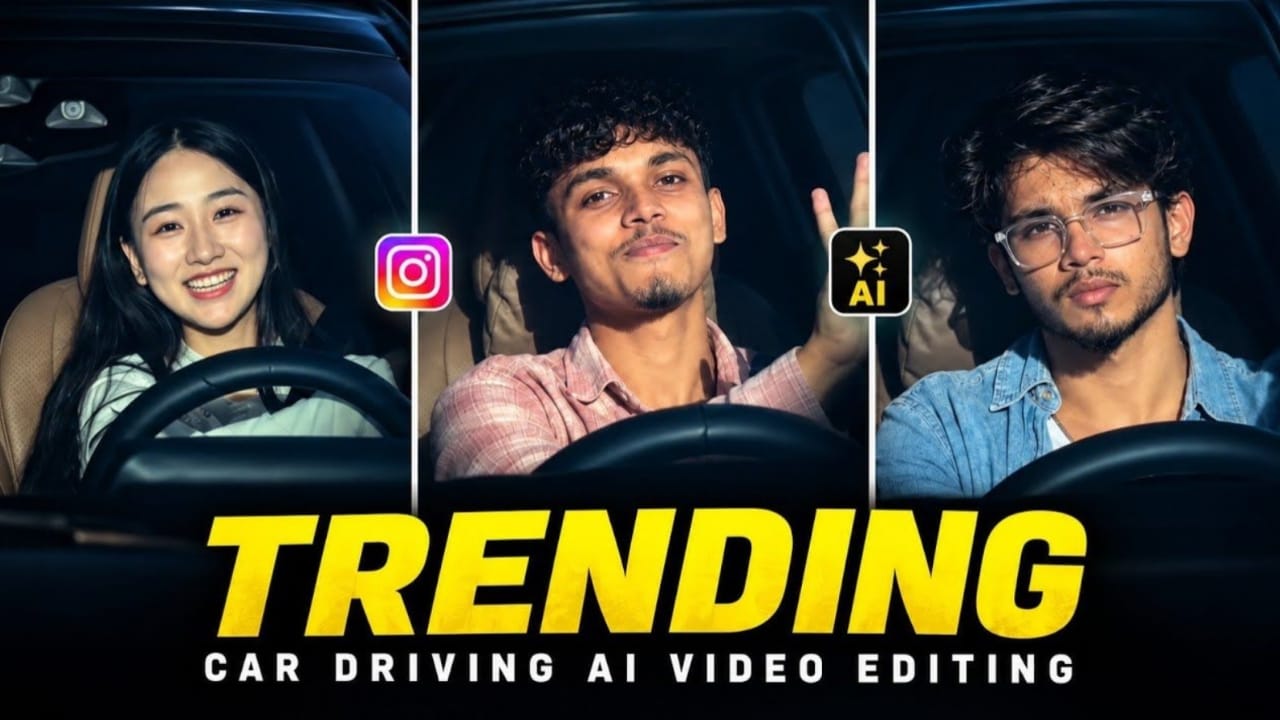
- This guide provides a cinematic car-driving AI video prompt for image-to-video tools.
- The prompt preserves the driver's identity, vehicle details and scene continuity while adding natural motion.
- A copy button lets you reuse the prompt quickly on mobile or desktop.
Want to turn a single portrait into a cinematic car-driving reel? This guide gives you a ready-to-copy car driving AI video prompt, a practical two-step workflow, and tips for avoiding distorted faces, hands, and vehicle interiors.
You can first create or edit the car image in ChatGPT Images, then animate that image in Google Flow. Features, models, credits, and availability can vary by plan and region.
What You Need
- A clear portrait with your face visible and evenly lit
- Permission to use every person’s likeness shown in the photo
- Access to an AI image tool and an image-to-video tool
- A specific car, location, camera angle, and lighting style in mind
Privacy note: A face photo is personal data. Check the chosen tool’s privacy settings and terms before uploading it, and never upload someone else’s photo without permission.
Step 1: Create Your AI Car Image
Open ChatGPT Images or another image generator that accepts reference photos. Upload a well-lit portrait and describe the car, road, clothes, composition, and time of day. ChatGPT supports creating images and editing uploaded images, although results will vary between generations.
Image prompt:
Review the generated image closely before continuing. Regenerate it if the hands, face, steering wheel, mirrors, or dashboard look unnatural. For more styles, see these AI photo prompt examples.
Step 2: Animate the Image in Google Flow
Google Flow can create video from prompts, ingredients, frames, and supported reference media. Start a project, choose a video model available to your account, add the generated car image as a frame or ingredient, and describe the subject’s movement and camera motion.
- Open Google Flow and start a new project.
- Select a supported video model and vertical aspect ratio.
- Add the AI car image as your starting frame or reference.
- Paste the video prompt below.
- Generate the clip and inspect the face, hands, vehicle, and background motion.
- Try a simpler prompt or shorter movement if the result contains visual errors.
Car Driving AI Video Prompt
This prompt is designed for a still reference image. If you are working from a reference video, replace “reference image” with “reference video” and specify which motion, framing, and timing should be retained.
Useful Camera Variations
- Front passenger view: Focuses on the driver’s expressions and steering.
- Side tracking shot: Shows the car moving through the environment.
- Dashboard close-up: Highlights hands and realistic interior details.
- Wide exterior shot: Emphasizes the road, landscape, and vehicle.
- Drone-style shot: Works best as a separate clip instead of mixing it with an interior shot.
How to Get More Realistic Results
- Use one clear action and one camera movement per generation.
- Keep clips short when testing a new prompt.
- Describe hand placement, reflections, and interior geometry explicitly.
- Avoid asking for driving, singing, dramatic gestures, and multiple camera changes at once.
- Generate several variations and select the one with the most stable face and vehicle.
- Add music later in your video editor instead of forcing lip-syncing into the first generation.
Final Takeaway
The most reliable workflow is to perfect the still car image first and animate it second. Use a clear portrait, keep the movement simple, and describe the camera and vehicle details precisely. AI output is not guaranteed to preserve a face or car perfectly, so review every frame before publishing the reel.