- Both iPhone and Android phones can share mobile data through a personal hotspot.
- Set a strong password, connect only trusted devices and monitor battery and data usage.
- If the hotspot fails, restart mobile data and check your carrier's tethering support.
Quick answer: On iPhone, open Settings > Personal Hotspot (or Settings > Cellular/Mobile Service > Personal Hotspot) and enable Allow Others to Join. For more iPhone-specific connection and security options, see our Personal Hotspot setup guide. On Android, open Settings > Network & internet/Connections > Hotspot & tethering and turn on the Wi-Fi hotspot. Menu names vary by manufacturer.
Before You Turn On a Hotspot
- Confirm that your mobile plan permits tethering and check its high-speed hotspot allowance.
- Use a strong, unique Wi-Fi password.
- Keep the phone charged; hotspot use can drain the battery quickly.
- Avoid large downloads if your plan has a limited data allowance.
- Remember that hotspot speed depends on cellular coverage and network congestion.
- In India, the unlimited 5G offer on some plans does not cover hotspot use (Airtel has confirmed this), so data shared through a hotspot is counted against your daily plan limit. Check your plan terms before sharing.
How to Use an iPhone as a Mobile Hotspot
- Open Settings.
- Tap Personal Hotspot. If it is not shown, open Cellular or Mobile Service, then select Personal Hotspot.
- Turn on Allow Others to Join.
- Tap Wi-Fi Password and set a password containing at least eight characters.
- On the laptop or tablet, open Wi-Fi settings, choose the iPhone’s name, and enter the password.
The hotspot name is the iPhone’s device name. You can change it under Settings > General > About > Name. Apple devices using the same Apple Account or Family Sharing may connect through Instant Hotspot without manually entering the password.
Connect an iPhone by USB
Enable Personal Hotspot, connect the iPhone to the computer with a compatible USB cable, and tap Trust if prompted. A Windows PC may require the current Apple Devices app or iTunes. USB tethering can be more stable than Wi-Fi and charges the phone at the same time.
How to Use a Samsung Galaxy as a Hotspot
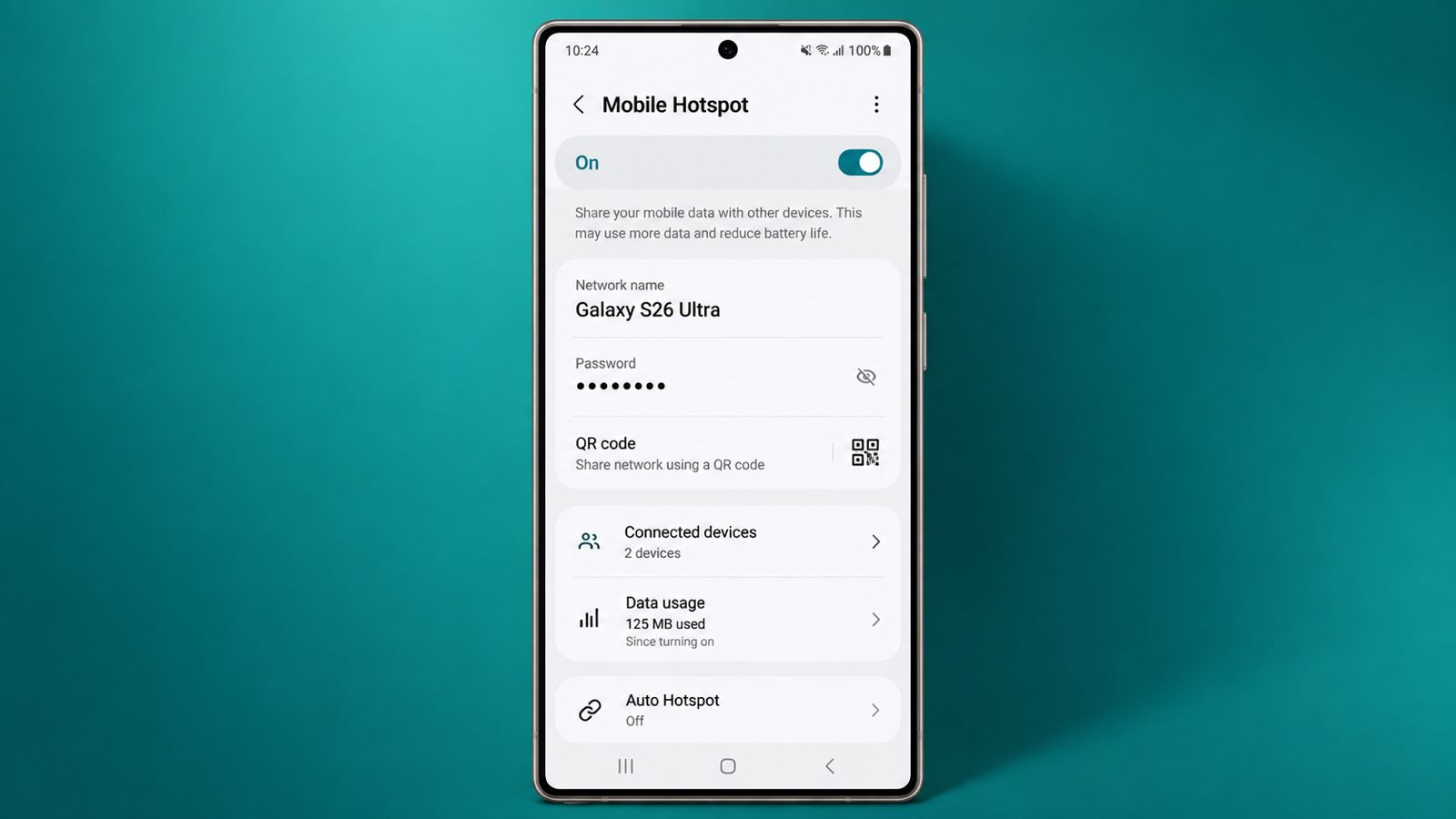
- Open Settings > Connections.
- Tap Mobile Hotspot and Tethering.
- Select Mobile Hotspot, configure the network name and password, and turn it on.
- Connect the other device through its Wi-Fi menu.
How to Use a Google Pixel or Other Android Phone
- Open Settings > Network & internet.
- Tap Hotspot & tethering > Wi-Fi hotspot.
- Set the hotspot name, security type, and password.
- Turn on Use Wi-Fi hotspot.
- To see or change the password later, tap Hotspot password on the same screen.
Android menu names differ across brands, so search Settings for “hotspot” if you cannot find the option. Some phones also support USB, Bluetooth, or Ethernet tethering.
Keep Your Hotspot Secure
- Use WPA2 or WPA3 security when offered.
- Do not use a name, birthday, or phone number as the password.
- Check the connected-device list and remove anything unfamiliar.
- Change the password immediately if an unknown device connects.
- Turn the hotspot off when you finish using it.
Fix Common Hotspot Problems
- Option missing: Enable mobile data and confirm that the carrier supports hotspot service.
- Device cannot connect: Restart both devices, forget the Wi-Fi network, and enter the password again.
- Connection is slow: Move to a stronger cellular signal, disconnect unused devices, or switch between 2.4 GHz and 5 GHz if supported.
- Older device cannot see the iPhone: Try Maximize Compatibility in Personal Hotspot settings.
- Data runs out quickly: Pause cloud backups, system updates, and video streaming on connected devices.
For more detail, see Apple’s official Personal Hotspot instructions. If you only need to share access to an existing Wi-Fi network, our guide to creating a Wi-Fi QR code is the better option because it does not use cellular data.
Frequently Asked Questions
Does using a mobile hotspot drain the battery faster?
Yes. Sharing mobile data keeps the phone’s cellular and Wi-Fi radios busy, so the battery drains faster than usual. Keep the phone plugged in for long sessions, or use USB tethering, which charges the phone while sharing data.
Where can I find my hotspot password?
On iPhone, open Settings > Personal Hotspot and check Wi-Fi Password. On a Google Pixel, open Settings > Network & internet > Hotspot & tethering > Wi-Fi hotspot > Hotspot password. On a Samsung Galaxy, open Settings > Connections > Mobile Hotspot and Tethering > Mobile Hotspot and tap the password field.
Is USB tethering better than a Wi-Fi hotspot?
USB tethering is usually more stable and charges your phone at the same time, but it connects only one computer. A Wi-Fi hotspot is more convenient when you need to connect a laptop, tablet or several devices at once.
How much data does a hotspot use?
It depends on what the connected devices do. Browsing and email use little data, while video streaming, video calls, large downloads, system updates and cloud backups use much more. Laptops often start updates and backups automatically, so pause them and check data usage on your Android phone while you are connected.
Final Takeaway
A phone hotspot is useful when trusted Wi-Fi is unavailable. Check your data plan, protect the network with a strong password, monitor connected devices, and disable the hotspot afterward. For long sessions, USB tethering is often the most stable option.