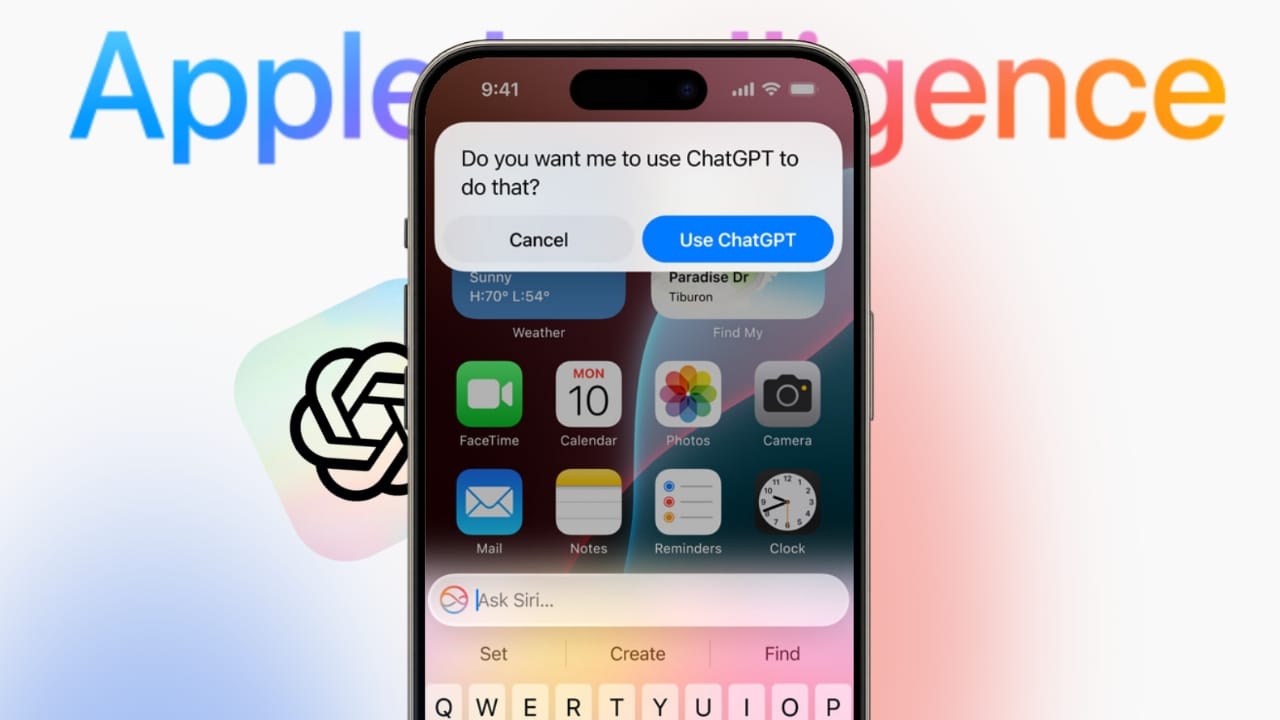
Use ChatGPT on iPhone with Apple Intelligence today. Apple introduced ChatGPT integration starting iOS eighteen point two. This feature works directly inside the iPhone system. Users no longer need to install a separate ChatGPT application.
Siri now becomes smarter using ChatGPT responses. Writing, seeing, and understanding tasks feel much easier.
Use ChatGPT on iPhone with Apple Intelligence Setup
Understanding ChatGPT and Apple Intelligence Integration
Use ChatGPT on iPhone with Apple Intelligence seamlessly. Apple Intelligence allows artificial intelligence across system features. ChatGPT works like a native intelligence service.
It supports Siri, Writing Tools, and Visual Intelligence. Users experience smoother and more natural interactions. No separate application switching is required anymore.
Starting ChatGPT Setup on iPhone
Use ChatGPT on iPhone with Apple Intelligence setup easily. Open the Settings application on your iPhone. Navigate to Apple Intelligence and Siri section. Select ChatGPT from the available extension options. Tap the Set Up option to begin. The system now shows usage choices clearly.
Choosing ChatGPT Without an Account
Users can enable ChatGPT without signing in. This option provides quick and basic access. No chat history gets saved on servers. Requests remain temporary and session based. This suits users wanting simple help only.
Choosing ChatGPT With an Existing Account
Users may also connect an existing ChatGPT account. This unlocks advanced ChatGPT capabilities. Previous chats remain saved automatically. Long conversations stay accessible across sessions. Sign in using valid ChatGPT credentials carefully.
Signing In Later After Skipping Setup
Some users skip account linking initially. Apple allows signing in anytime later. Open Settings and return to Apple Intelligence. Select ChatGPT and choose the Sign In option. Follow onscreen instructions to complete login.
Fixing Missing ChatGPT Option Issue
Some users cannot see the ChatGPT option. Language mismatch usually causes this problem. Siri language must match device language settings. Both languages must be officially supported. Apple provides supported language availability information online.
Use ChatGPT on iPhone with Apple Intelligence Features
Writing Tools Powered by ChatGPT
Use ChatGPT on iPhone with Apple Intelligence writing tools. Writing Tools now support composing original text. ChatGPT enables this advanced writing feature. Users can describe content and receive generated text. This works across supported applications like Notes.
To use Writing Tools, open a supported application. Tap inside an empty text field area. Open the contextual menu using the arrow button. Select Writing Tools from available options. Choose the Compose tab inside Writing Tools.
ChatGPT generates text after brief processing. Generated content appears directly in the text field. Users can rewrite, summarize, or explain content.
Visual Intelligence Explained Simply
Visual Intelligence allows the iPhone to understand visuals. It reads screen content and camera views. This information gets shared with ChatGPT automatically. Users avoid manually describing images or screens. The experience feels fast and deeply integrated.
Using Camera View With ChatGPT
Camera based analysis works in real time. Point the iPhone camera toward any subject. Long press the Camera Control button. Visual Intelligence mode activates instantly.
Tap the Ask button on screen. ChatGPT begins processing visual information. Results appear inside a chat style overlay. This helps identify objects, signs, and documents. Translations and ingredient explanations become easier.
Using Screenshots With ChatGPT
Visual Intelligence also works with screenshots. This helps understand captured screen information. Take a screenshot using hardware buttons. Tap the screenshot preview immediately.
Select the Ask button at bottom. Type or speak your question clearly. ChatGPT analyzes screenshot content intelligently. It provides summaries, explanations, or extracted details.
Using Siri With ChatGPT
Use ChatGPT on iPhone with Apple Intelligence through Siri. Activate Siri using voice or side buttons. Ask any question needing deeper understanding.
Siri asks permission to use ChatGPT. Tap the Use ChatGPT option. A working message appears briefly. The final response displays after processing.
Typing Requests Instead of Speaking
Users can type requests silently. Double tap the app switcher bar. Type the request to Siri directly. This works well in quiet environments.
Removing Siri ChatGPT Confirmation Requests
Siri asks for confirmation for privacy reasons. Some users prefer faster automatic responses. Open Settings and go to Apple Intelligence. Select ChatGPT under Extensions section.
Turn off Confirm ChatGPT Requests option. Siri still asks before sending files. Users can bypass confirmation using special phrases. Start a request using the words Ask ChatGPT directly.
Using ChatGPT as Safari Search Engine
Siri ChatGPT works only on newer iPhones. Safari extension helps older devices access ChatGPT. Ensure ChatGPT application is fully updated. Open Settings and navigate to Safari.
Select Extensions under General settings. Enable ChatGPT search extension option. Allow extension permissions when prompted. Safari search bar now shows AI answers.
Use ChatGPT on iPhone with Apple Intelligence Controls
Turning Off ChatGPT Access Completely
Some users worry about data sharing. Apple provides a full ChatGPT disabling option. Open Settings and Apple Intelligence section. Select ChatGPT under Extensions menu. Turn off Use ChatGPT toggle. ChatGPT stops working across the device.
Stopping Siri From Suggesting ChatGPT
Siri may still suggest ChatGPT usage. Users can disable these suggestions easily. Turn off Setup Prompts option afterward. Siri no longer recommends ChatGPT features.
Solving ChatGPT Sign In Problems
Sign in issues may occur occasionally. Internet connection problems cause many errors. Switch between WiFi and mobile data. Server issues may require waiting patiently. Incorrect login details also cause failure. Check email and password carefully. Restarting the iPhone fixes software glitches often.
The Bottom Corner
Use ChatGPT on iPhone with Apple Intelligence confidently. This integration makes the iPhone smarter and faster. Writing, vision, and voice features work together. Users gain productivity and better understanding daily.
Setup remains flexible with account choices. Privacy controls stay fully in user hands. ChatGPT feels like it’s built in intelligence. Overall, Apple Intelligence transforms everyday iPhone experience.